
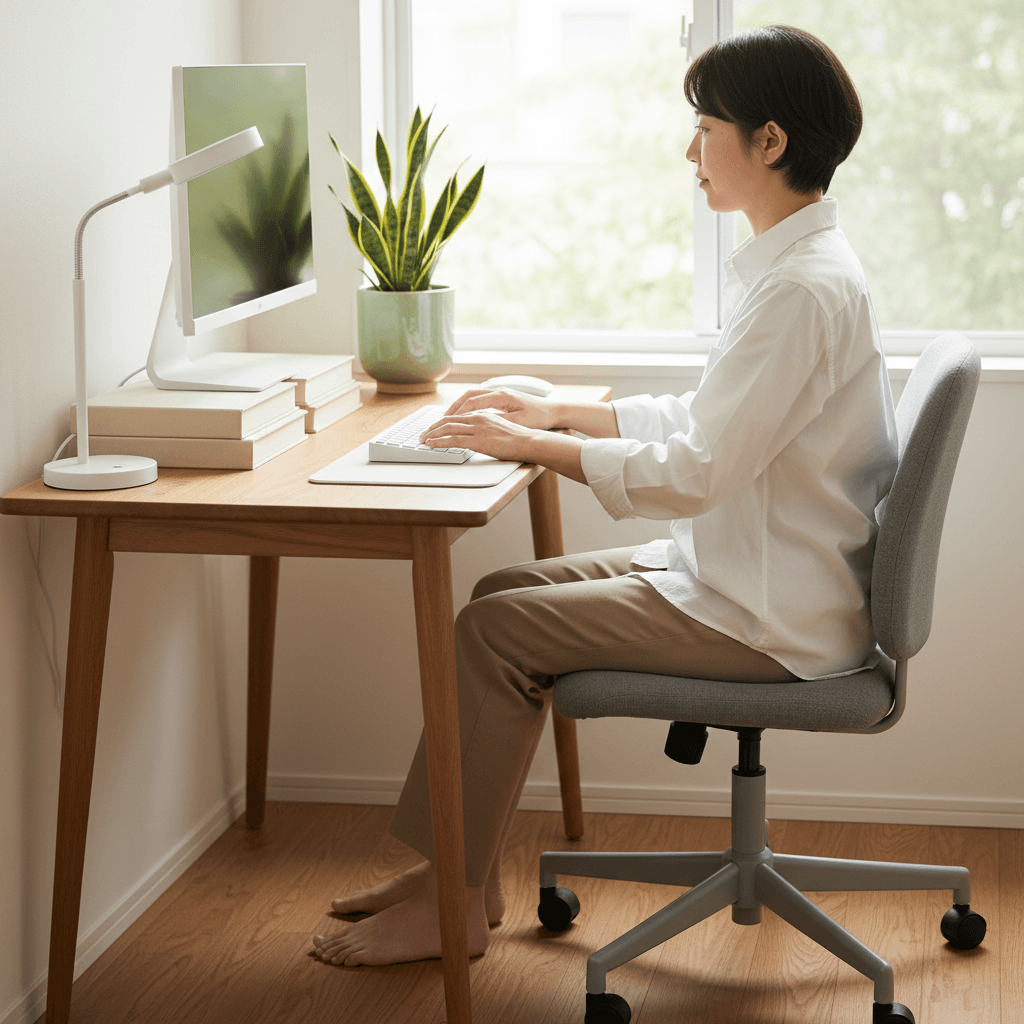
A basic desk setup for eighty to one hundred dollars can help prevent soreness in your back, neck, and shoulders while working from home. About half an hour gives enough time to put things together and fine-tune each piece just right. Instead of chasing stylish extras, focus first on getting the screen at eye level, hands comfortably on keys, and sitting well supported. People using tight living areas – like studio apartments or compact rooms – will find clear advice here on which items matter most, where they belong around you, and ways to dodge typical posture problems. Skip costly so-called high-end gear; practical choices do the real job.
Simple Ways to Improve Comfort Without Spending Much
Slouched positions hit people who work remotely harder than many expect. Studies find half of those logging in from home have backaches, while more than one in three feel neck strain within half a year. Bent over a screen at a kitchen bench all day, the spine gets squeezed wrong, shoulders drift ahead, and the head juts out in ways it cannot handle well. Without change, tight muscles build up, heads throb regularly, and soreness sticks around – making tasks tougher, rest worse. Time stretches the problem until small strains become daily burdens. A tidy desk helps a studio feel like home.
Just because something costs less does not make it risky – sometimes it simply shows smarter choices. Raising your screen to eye height is the goal, whether that’s done by a fifteen-dollar riser or one priced ten times higher. Looks and logos shift from one option to another, yet how they work stays identical. Protection for your back or wrists comes not from gadgets labeled premium but from correct alignment. Fancy motors under desks offer movement, true – but so can books stacked neatly beneath your monitor. Comfort lives in positioning, not price tags. What matters most fits quietly into daily life without demanding attention or draining savings.
Screen should sit so your gaze hits the upper part, arms bent just shy of straight, shoes planted fully down, hands neutral on keys. Fancy gear shouts about endless levers, split boards forcing awkward stretches, upright desks trembling under a coffee cup. A pile of settings stay untouched by most who work from home. Skip the noise first – build steady habits that block discomfort, swap one piece later once real strain shows its face over weeks.
Stuff You Need for Less Than 100 Bucks
Here’s everything you need to build a proper ergonomic setup without overspending:
Up high, a little tray lifts your laptop so you’re staring straight ahead instead of down. Neck pain? Less likely when your eyes meet the screen head-on. Costs between twelve and twenty bucks – simple fix, really
A separate keyboard means typing comfort without moving the display. Hands rest right where they need to, even when the monitor sits high. Wired versions handle everything just as well. Spending fifteen to twenty-five dollars covers solid options
A small thing you hold in your hand – works fine if it feels right when used, moves smoothly without strain, uses light sensors inside, costs little (between eight and fifteen dollars)
A small boost underneath helps align your screen right – try a sturdy book if you skip buying a stand. Height matters more than looks, so pick whatever stays put without wobbling. Even a thick binder works fine when placed flat. Stability beats design every time here. Skip spending unless you value sleek shapes over function
Built into nearly every firm seat, a pad eases pressure across the hips while lifting slight tension from tailbone regions (cost: $10–$18). Starting softly beneath layered fabric, it reshapes contact points without altering chair structure. Found often where long sitting occurs, this layer reduces strain through even dispersion rather than rigid bases. Priced between ten and eighteen dollars, its role stays quiet yet effective under daily use
A small light for your desk helps ease the stress on eyes caused by bright ceiling lights or shiny screens. An adjustable arm makes it easier to aim the glow just right. Look for one that bends where you need it. Prices usually sit between twelve and twenty dollars
Twist a cable tie through loose wires so they stay put near your desk leg. Tangles vanish when clips hold each line separate, priced between five and eight bucks. Loop straps around bundles to stop snags on chair wheels. These small tools live behind monitors where messes grow quiet. Fasten one after plugging in lamps or chargers – cost fits any drawer
A little platform for your feet might help when the seat sits too high. Keeps heels down without straining. Price range? Between nothing and twelve bucks
A small cushion for your wrist – just when you lean on it during typing. Memory foam keeps things soft, costs between 8 and 12 dollars
When you’re always checking printed pages, a clip that holds them right in front of your eyes can help. That spot stays steady around six to ten dollars
Fifty bucks here, another thirty there – total hits eighty to a hundred, give or take what’s already in your closet.
Step-by-Step Setup (Beginner-Friendly)
- Near a window works best for your desk – try natural light if you can in about two minutes flat. It eases pressure on the eyes while helping concentration stay steady. When windows aren’t an option, go with a lamp placed off to one side instead. Behind the screen is trouble – it causes glare that messes with viewing. Overhead lighting? Skip it. Harsh shadows creep up fast under bright top-down beams.
- Start by adjusting your chair until both feet sit fully on the floor – this takes about three minutes. Thighs level with the ground work best, though a small downward tilt is fine. When the seat can’t go low enough, place a solid platform under your feet. Bend knees to form right angles, letting hips stay just above them. A proper fit means comfort without strain after settling in.
- Start by setting down the keyboard and mouse flat on the desk – one full minute spent just placing them right. A little space from the front edge works best, roughly hand-width away, so arms don’t stretch. Elbows hang naturally at your sides, held in tight without pulling back or pushing forward. From forearm to fingers, keep everything aligned, like a ruler drawn through. Wrists hover, never dipping low nor lifting high, staying neutral above the keys.
- Reach out straight from where you sit – the tip of your fingers ought to barely graze the display surface. Position a laptop riser such that, seated tall, the upper edge meets eyesight or dips just beneath it. When using separate screens, aim for the top portion of the monitor to match your gaze directly. Set up either one about an arm’s span distant, roughly five minutes spent fine-tuning. Alignment matters most when posture stays natural through the whole work stretch.
- Start by typing something short – just three minutes will do. Notice how your shoulders sit; they ought to rest low, nowhere near your ears. Your elbows? They drop easily beside you, angled just past ninety degrees. Reaching out too far means the chair’s too far – or maybe the keyboard’s not close enough. Tugging those shoulders tight hints it is time to shift things closer. Small moves here make space for comfort.
- Start by changing how the monitor tilts and glows – just two minutes spent here helps. A slight forward lean of the eyes comes from tipping the display backward between ten and twenty degrees. Room lighting should guide the glow on screen; too sharp stings, too weak strains. When sunlight bounces off the glass, twist the device sideways or lower the shades a bit. Seeing clearly means shifting position before settling in.
- Start by fastening cords to the rim of your desk using small holders – takes about four minutes flat. From there, guide charging lines, data links, and peripheral leads neatly along the sides instead of letting them hang loose. That way, trips get avoided while making tight areas seem more open. A quick fix like this stops sudden tugs too.
- Reach out – water bottle, handset, scribbled pages – all close by in under two minutes flat. Twisting sideways every few moments? Not necessary. Lean less when things sit just right. Around your main hand’s edge of the desk, trace a half-moon path: that’s where daily tools belong. Set them there.
Monitor and screen positioning matters most
Every twenty minutes, shift your gaze to an object twenty feet off – maybe outside or just across the space – for twenty full seconds. This trick helps stop tired eyes when screen time stretches on too long. A quiet alarm on your device can prompt it, even some open tools online do the job. Staring nonstop at close things strains the eyes more than most notice. Relief comes easily though, by breaking that cycle now and then. Headaches fade. Dryness eases. Small pause. Big difference.
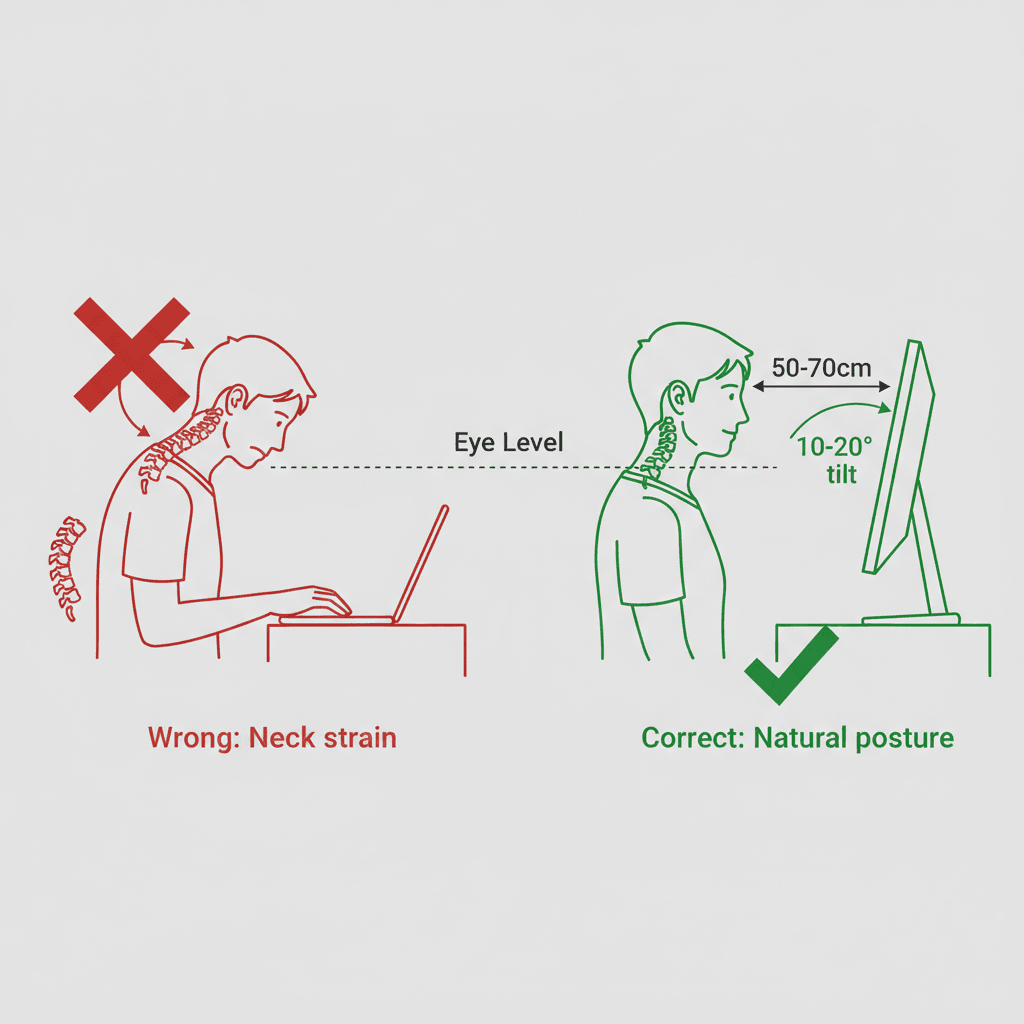
When sitting 50 to 70 centimeters away from your screen, tilting it backward by 10 to 15 degrees helps keep the top edge aligned with your eyes. This positioning stops you from leaning forward too much while easing tension in your neck. For laptop users around 40 to 50 centimeters back, a steeper tilt of 15 to 20 degrees works better when using a stand. With the upper third of the display at eye
height, slouching becomes less likely, supporting a natural spinal curve. If working with larger monitors placed between 70 and 80 centimeters out, only slight recline is needed – about 5 to 10 degrees. Aligning the center of such screens with your gaze keeps viewing relaxed without needing frequent head shifts. Sitting closer than 40 centimeters brings problems regardless of angle or alignment. Eye discomfort appears quickly; shoulders begin pulling inward just trying to stay adjusted.
Keyboard and mouse setup
Picture a ruler going from elbow to knuckles – that’s how straight your wrist must sit. A slight lift is okay, just nothing beyond fifteen degrees up. Many prop their keyboard ends with tiny legs underneath, but that tips the hands back unfairly. Leave those supports tucked away, out of sight. Let fingers hover before striking each key, carried by the arm’s weight alone instead of pressing into stiff bends.
Fixing your stance doesn’t need big spending. A small change here often helps more than expected. Position shifts start quietly, then show results later
Books stacked beneath your screen lift it just right. Try old textbooks or heavy novels – they stay put without wobbling. Your keyboard sits flat on the desk, hands level. Toward the front of the table, a rolled-up cloth cushions your wrists when edges dig in. Yet keep arms floating while typing, never leaning full weight there.
A ten dollar keyboard shelf bought secondhand drops your keys beneath tabletop level. When you stop typing for a moment, soft gel pads under the wrists add comfort – yet keep hands free during active keystrokes. If heavy clicking wears on you, an inexpensive five dollar pad eases strain with subtle lift at the wrist edge.
Start by shifting your keyboard nearer – keep elbows close, angled just right by your sides. Instead of reaching far, place the mouse right beside it, not stretched out like before. Try sitting a bit lower, letting arms tilt slightly down toward the surface. Tweak things you have now rather than looking to buy more stuff later. Fix how it sits today.
Chair Alternatives Under 50 Dollars
That old office chair you spot online or at a secondhand shop might cost just twenty to fifty bucks. Try sitting on it, give a little hop – see if the pump keeps its level instead of dropping fast. The padding underneath should stay firm, not dip like a worn couch, nor let metal bits jab out. Armrests? Nice to have, even if they’re plain ones that move up or down. Roll it across the floor – wheels ought to glide, never drag or stick. Back support works well. Height changes easily. Made to sit in all day without strain. Getting it means driving there yourself. Might show small marks or scratches. No guarantee if something goes wrong. Can’t send it back after taking it home.
A cushioned dining chair might cost between fifteen and thirty dollars just for the pad. The one you already own could do fine, provided it’s tall enough and doesn’t lean far backward. To avoid sore spots when seated long term, pick a dense cushion – either memory foam or gel based. Should the chair slope too much at the back, tuck a compact decorative pillow low on your spine to help hold posture. Whatever couch you’ve got might work just fine – cheap setup, simple to shift when needed. Still, raising or lowering it? Not happening. Support for your spine feels off after a while. Sitting nonstop past eight hours turns rough unless you step away now and then.
Try sitting on the floor, letting your back rest against something solid – like a wall or chair. A small cushion made for meditation might cost ten to twenty-five dollars, although stacked towels work just as well. Lift your seat a bit so your hips float higher than your legs, using whatever you have nearby. Cross your ankles loosely beneath you, or fold into a kneel if that feels steadier. Your computer should sit level with your eyes, maybe propped on books or a short shelf. Support comes
easier when things align – the spine likes it when the screen isn’t too high or low. Staying active comes easier when movements happen without thinking. Shifting around often keeps things flowing smoothly. Tight spots do not stop it from working well. Some find it tough if knees protest too much. Hips that ache might dislike the routine just as much. Eight straight hours could feel like too far a stretch. Strong stomach control helps make it work properly. Flexibility matters more than most expect by halfway through.
common mistakes and how to fix them
A common error? Keeping your laptop flush against the desktop while looking down nonstop. That position pushes more than twenty pounds of strain onto your neck bones – imagine balancing a heavy ball from your backbone hour after hour. Here is what shifts things: lift the machine using whatever is handy, maybe a rack or even thick books, until the upper edge of the display meets your gaze straight on. After that, hook up a separate keyboard. This way, hands stay at midsection height without hunching forward.
Here’s mistake number two: being either too distant from the screen or way too near. Leaning happens if you’re stretched out, which means your lower back loses its support. On the flip side, sitting tight up front pushes eyes to work harder while shoulders creep upward. Try settling fully into your seat instead. Reach one arm straight ahead without shifting your body. Where your fingers land lightly is exactly where the monitor should be – roughly between half a meter and seventy centimeters, shaped by how long your arms are.
Here is how it happens: wrists tilt up during typing or mouse use. Over time, that position irritates tendons. Months of this motion can trigger repetitive stress damage. Try adjusting your setup instead – set the keyboard lower or lift your seat higher. That shift helps arms angle slightly down. Let wrists hover without pressing against the table’s edge. A straight alignment reduces pressure. Stay there without leaning on hard surfaces.
Floating legs happen when the seat sits too high. That gap tugs on nerves behind the thighs, slowing circulation until tingling starts. Try wedging a shoebox underneath, maybe even thick books lined up – just enough to let heels sit level, hips and knees bent like an L.
Daily Habits to Prevent Pain
Every couple of hours, take five minutes to stretch. Begin with neck rolls – ten slow turns one way, then ten the opposite. Shoulder lifts follow, fifteen steady lifts to ease upper back strain. Twisting gently while sitting helps too – twenty seconds per side keeps the spine limber. Wrist rotations come next: ten rounds forward, ten backward. Fingers spread wide, pause for five counts, do that ten times. Small moments like these stop tightness turning into ache.
Every sixty minutes, pause for two or three minutes. Get on your feet, head to a different space, knock out ten squats, or take a short trip outdoors. Sitting without shifting slows things down – no matter how well arranged your chair and desk seem. Try alerts from your phone or tools that nudge you when it is time. Stillness wears you out, even if everything appears just right.
Every half hour, pause for ten seconds to fix your stance. Imagine a thread lifting your skull upward, aligning your backbone straight. Draw your shoulder blades closer while rolling shoulders backward and lowering them. Stretch through the spine before sinking into a slump. Adjust how you sit just as it starts drifting wrong.
Avoid staring nonstop by pausing twenty times each hour – just briefly. Every so often, shift focus to an object beyond twenty feet. That quick break lasts half a minute. Staring less helps prevent tiredness building up slowly. Rewetting happens when you blink fully ten times on purpose. Sometimes squeezing eyelids shut tight brings relief right away.
Every 90 minutes, spend a few moments on your feet instead of sitting. Try pacing while talking on the phone, washing plates slowly, or sorting clothes you’ve washed. Moving for five to ten minutes at regular intervals helps blood flow and eases pressure on your back. A short stroll through rooms works just as well. Your body responds better when seated time is broken often.
Frequently Asked Questions About Low Cost Ergonomic Solutions for People Working From Home
Can I use a dining table as a desk for work?
Most dining tables fit right when they stand between seventy and seventy six centimeters – just like regular desks. Yet here’s the catch: many sit so high that typing pulls your shoulders upward, creating tension. Try this instead – take a seat and bend arms to ninety degrees; now check where the tabletop lands. Above the elbow? Then lift the chair higher, then slide a footrest below your feet.
What’s the best budget office chair under $50?
Office chairs picked up at closing-out deals or online resale spots outlast brand-new budget seats hands down. Try hunting down names such as Steelcase, Herman Miller, maybe even a no-frills Staples Hyken – often going for thirty to fifty bucks, showing slight marks yet holding strong in comfort support. See if the lift mechanism still adjusts smoothly. Make sure the padding under you isn’t fully compressed or sagging. A working lever matters more than perfect fabric.
How high should my monitor be?
Start by setting the upper rim of your monitor even with your eyes – or just a bit lower – while seated upright. Downward vision, around 10 to 15 degrees, works best when aimed at the middle of the display. Staring upward too much pulls on your neck muscles over time. A sharp tilt downward brings similar tension, like what happens using a laptop placed flat on a table.
Is an ergonomic keyboard something you actually require?
Most times, an ordinary fifteen dollar keyboard does just right – so long as your hands stay flat and wrists straight. Devices split in half or shaped oddly tend to support those already struggling with soreness, yet won’t shield healthy users by default. What counts above all? How high the board sits and where wrists land. Angles beat curves every time when avoiding strain creeps in slowly.
Can I work standing up to avoid back pain?
Sometimes standing helps – just twenty to thirty minutes before shifting again. Yet swapping an office chair for long stretches brings different issues, trading lower back strain for sore feet or tired legs instead. Movement matters more overall. Try sitting forty to fifty minutes, then rising ten to fifteen, followed by five spent walking around. That rhythm often balances better through the day. A kitchen countertop might work if desks are too low. Watch elbow angles. They should stay bent near ninety degrees when typing or resting hands. Repeat the pattern every hour without strict timing. Comfort shifts over hours. What feels right mid-morning may not fit afternoon energy.
How do I create an ergonomic remote desk in a small apartment?
Invest in a cheap laptop stand to raise your screen to eye level, and pair it with an external keyboard and mouse to prevent neck and wrist strain.
What is the best cheap desk chair for small spaces?
Look for compact, mesh-backed task chairs or active-sitting stools that provide lumbar support without taking up the massive footprint of a gaming chair.
Can I use my dining table as a permanent desk?
It is not recommended. Dining tables are usually too high for comfortable typing, leading to shoulder pain. Add a seat cushion or keyboard tray if you must.
